Video · 4 min read
How to Add Captions to Reels on PC, Step by Step
Add captions to Instagram Reels on PC: manual and prompt-based methods, caption styles, safe zones, export settings and common mistakes.
To add captions to Reels on a PC, edit your clip in 9:16, generate captions from the speech (or type them), style them in a bold readable font, keep them above Instagram's bottom safe zone, then export at 1080 × 1920 and upload. You can do it by hand in a timeline editor, or describe the whole edit in one sentence with a prompt-based editor. This step-by-step guide covers both, plus export settings and the mistakes that make captions hard to read.
Tarzi Editor runs on Windows 11 today, with Mac and Android coming soon.
Why edit Reels captions on a PC instead of the phone?
- A bigger screen makes timing and spelling mistakes easier to catch.
- Your footage is already there if you shoot on a camera or record your screen.
- Better fonts and styles than most in-app caption stickers, including proper Indian-script fonts.
- Batch work. Captioning five Reels in one sitting is far quicker on a desktop.
Option 1: Add captions manually in a timeline editor
- Create a 9:16 project at 1080 × 1920.
- Import your clip and trim it to length.
- Generate or type captions. Most editors have an auto-caption feature; otherwise add text layers line by line.
- Split captions into short chunks, two lines at most, timed to the speech.
- Style them: bold font, high contrast, outline or shadow.
- Position them above the bottom fifth of the frame.
- Export as MP4 (H.264), 1080 × 1920, 30 fps.
This works, but steps 3 to 6 are where most of the time goes, especially for word-by-word animated captions.
Option 2: Describe the edit in one sentence
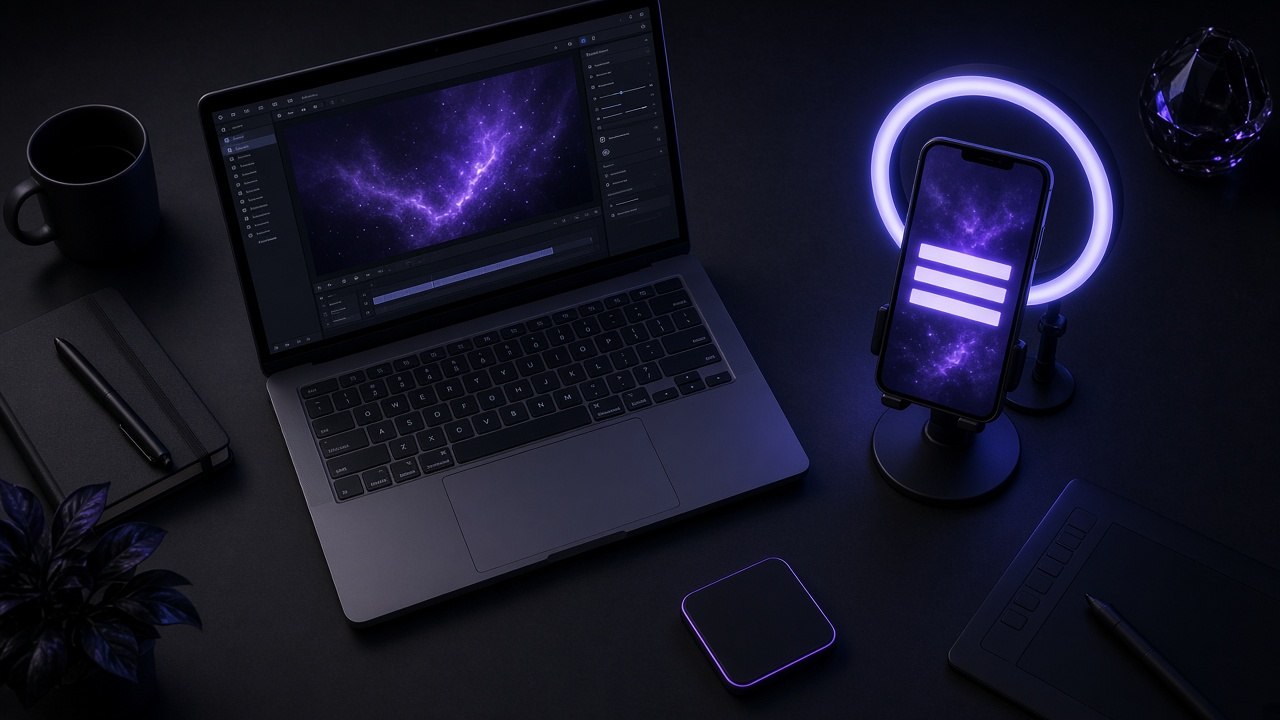
With a prompt-based editor like Tarzi Editor, you describe what you want and it plans and carries out the steps on your own PC:
"Cut the pauses, make it vertical and under 60 seconds, add bold word-by-word captions in white with a black outline, two lines max, above the bottom safe zone."
Tarzi lays out the plan, makes each change where you can watch it in the Activity panel, then checks the result against your brief and tells you plainly if anything did not pass. You review the captions, fix any words, and export. For the bigger picture, read prompt-based video editing, explained.
Caption styles that work on Reels
- Word-by-word highlight: the current word changes colour. High energy, good for talking heads.
- Phrase captions: a short phrase at a time. Calmer, better for tutorials.
- Keyword emphasis: one important word per line in a bigger or coloured style.
- Title plus captions: a title card for the hook, then captions for the rest.
Tarzi includes 67 caption looks, 39 text animations and 28 fonts, and you can match your brand colours.
Reels safe zones
Instagram overlays the username, caption text, audio label and buttons on your Reel. To keep captions visible:
- Keep them above roughly the bottom 20% of the frame.
- Stay clear of the right edge, where the like, comment, share and audio buttons sit.
- Leave space at the top for the Reels header.
- Check the grid crop: Reels shown on your profile grid are cropped, so keep the hook text near the centre.
Captions in Indian languages
If you post in Telugu, Hindi or Tamil, make sure the editor shapes the script properly. Broken conjuncts and misplaced vowel signs are common in apps that only handle Latin text. Tarzi shapes Telugu, Hindi and Tamil correctly, joiners included, with the Kalakar font set for Indian scripts. Language-specific guides:
Export settings for Instagram Reels
- Resolution: 1080 × 1920 (9:16)
- Format: MP4, H.264 video, AAC audio
- Frame rate: match your footage, usually 30 fps
- Length: keep most Reels under 60 seconds for the best completion rate
- Burned-in captions: export with captions on the video so they show on every device
Common caption mistakes
- Too much text per line. Aim for about 32 characters or fewer.
- Thin fonts that disappear on busy backgrounds.
- Captions covering faces or on-screen product text.
- Unchecked auto-captions with wrong names or numbers.
- Captions in the bottom safe zone, hidden by Instagram's interface.
- Inconsistent style across a series, which weakens your brand.
Our video editing checklist has 40 checks to run before export.
How long should captioning take?
By hand, captioning a 45-second Reel with animated captions can take 20 to 40 minutes. With auto-captions and a good review routine it is closer to 10 minutes, most of it spent reading and fixing. A prompt-based editor removes the styling and positioning work, so your time goes into checking the words.
What does Tarzi Editor cost?
Start with the free trial: every feature, no card needed, with a small watermark on trial exports. In India, Pro is ₹1,499 a month for 20 AI videos and Studio is ₹4,999 a month for 100 AI videos. Prefer one payment? The Founder Lifetime licence is ₹7,999 ($99 outside India) for the first 100 licences. See the Tarzi Editor pricing page for yearly plans.
Frequently asked questions
Can I add captions to Reels on Windows? Yes. Tarzi Editor runs on Windows 11 today, with Mac and Android coming soon.
Should I use Instagram's caption sticker or burn captions in? Burned-in captions give you full control over font, style and position, and look the same everywhere.
What font size should captions be? Large enough to read on a phone at arm's length. Test by watching your export on a phone before posting.
Caption your next Reel
Download Tarzi Editor, open a clip you already have, and describe the captions you want.